Multi-Factor Authentication adds an extra layer of security to your account by requiring a one-time code, in addition to your password. ⚠️NOTE: Not all agencies or divisions have MFA enabled. It can be configured in Division Settings by users with the the appropriate permissions.
1. Setting up MFA
MFA setup happens during login. Depending on your account, you may be prompted on your first login or the next time you sign in after MFA is enabled for your division.
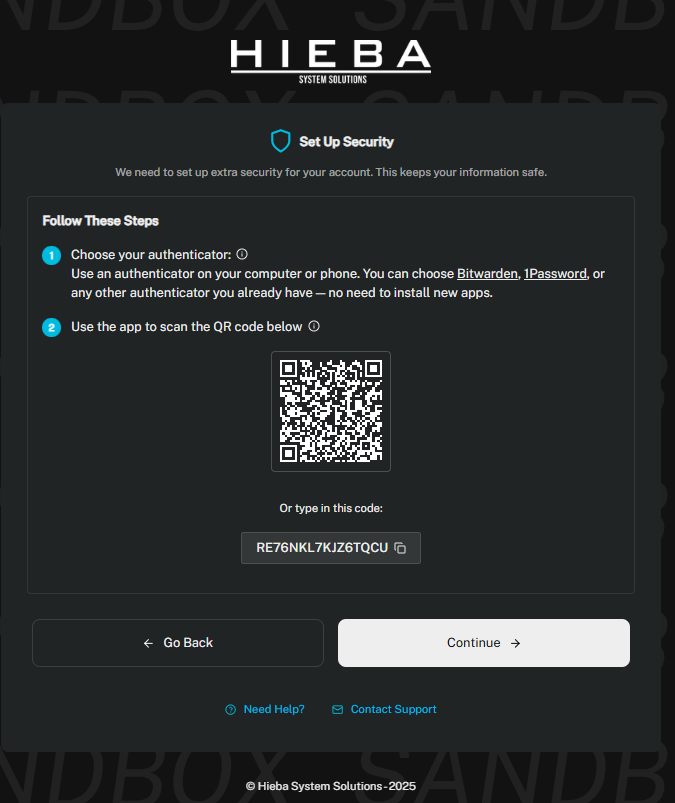
You will see the MFA setup screen with two options:
Scan QR code with your authenticator (on desktop).
Copy code into your authenticator app.
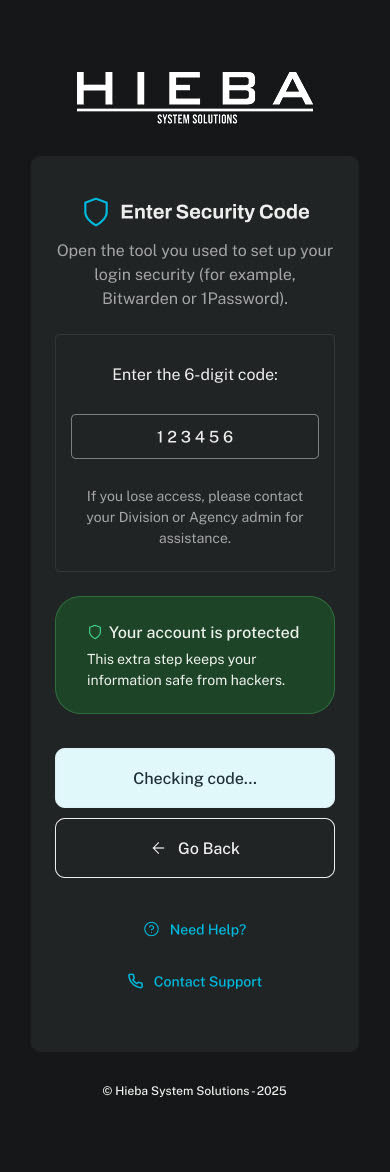
On mobile, the QR option is not available. You can copy the code or use the Open in Authenticator link.
Recommended authenticators (web-based): Bitwarden, 1Password, or other web authenticators.
Mobile:
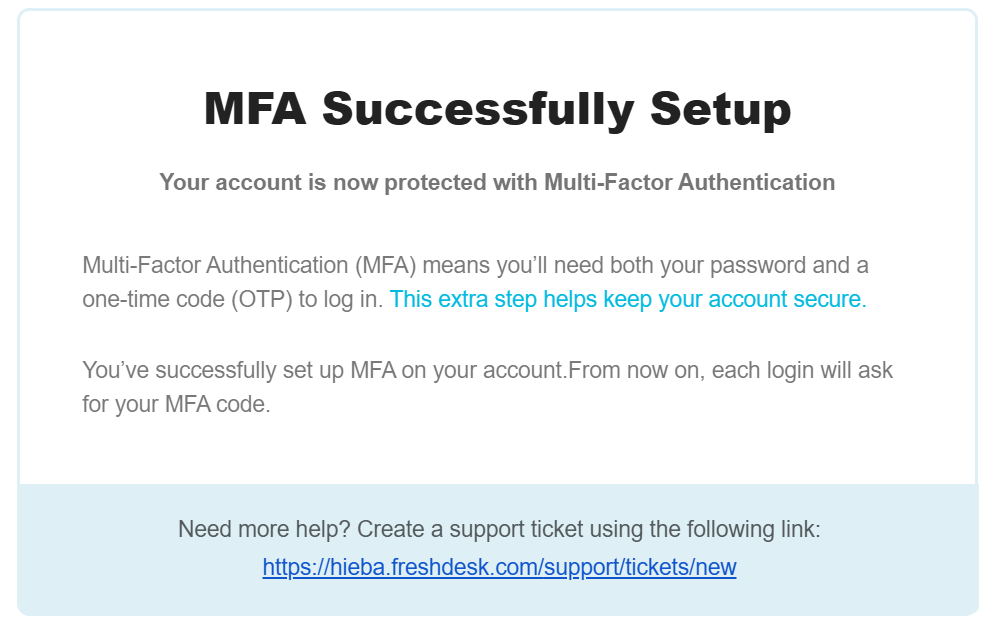
2. Logging in with MFA
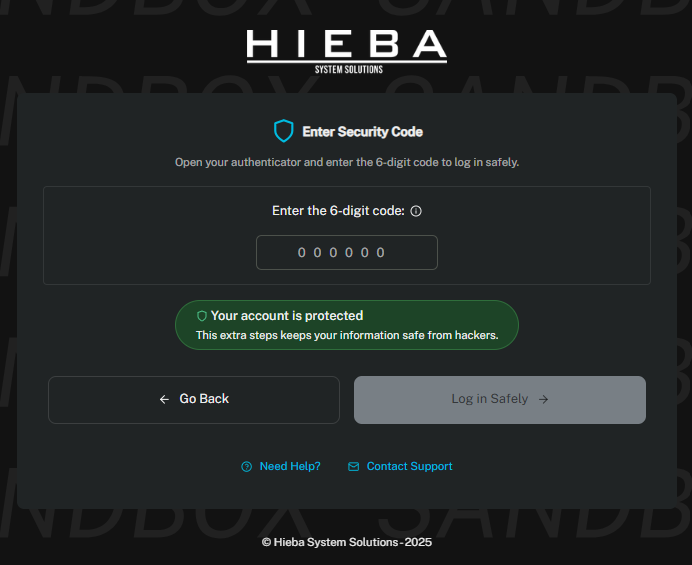
After setup, you will be asked to enter a one-time password (OTP) code each time you log in.
Steps:
Enter your email and password.
Open your authenticator app.
Copy the current 6-digit code.
Paste it into the MFA prompt.
Possible errors:
Invalid code → The code entered was incorrect.
Code expired → Codes refresh every 30 seconds. Use the newest one.
3. Resetting MFA
If you lose access to your authenticator, MFA must be reset.
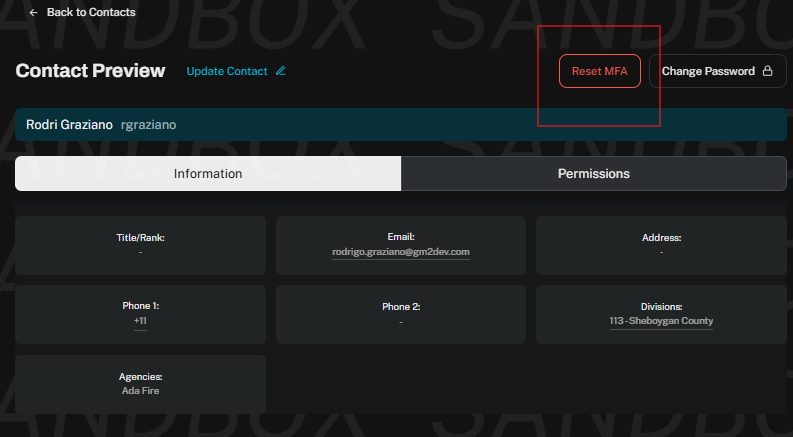
Who can reset MFA? Your Division or Agency admin.
How it works:
Contact your admin.
The admin resets MFA.
This triggers an email notification to you.
The next time you log in, you will be prompted to set up MFA again.
If your admin is not available, you can also contact Support at https://hieba.freshdesk.com/support/tickets/new
4. Troubleshooting & Support
MFA is designed to be simple, but here are a few quick tips:
Always make sure your computer clock is accurate.
Codes expire quickly — refresh your app if you see errors.
Try copying/pasting instead of typing the code manually.
If issues continue, please contact your Division admin or https://hieba.freshdesk.com/support/tickets/new
Was this article helpful?
That’s Great!
Thank you for your feedback
Sorry! We couldn't be helpful
Thank you for your feedback
Feedback sent
We appreciate your effort and will try to fix the article