**CAD Incidents display if you have an interface established with HIEBA and your CAD vendor.
You will see the tab, CAD Incidents, on the last column of the dashboard. Once you click on that heading, any active incidents that could potentially result in the need to activate a MABAS card will be displayed there.
You can see the last time the incidents were updated just below the CAD Incidents header. You can click Update Information to refresh. It is available to be refreshed every 30 seconds.
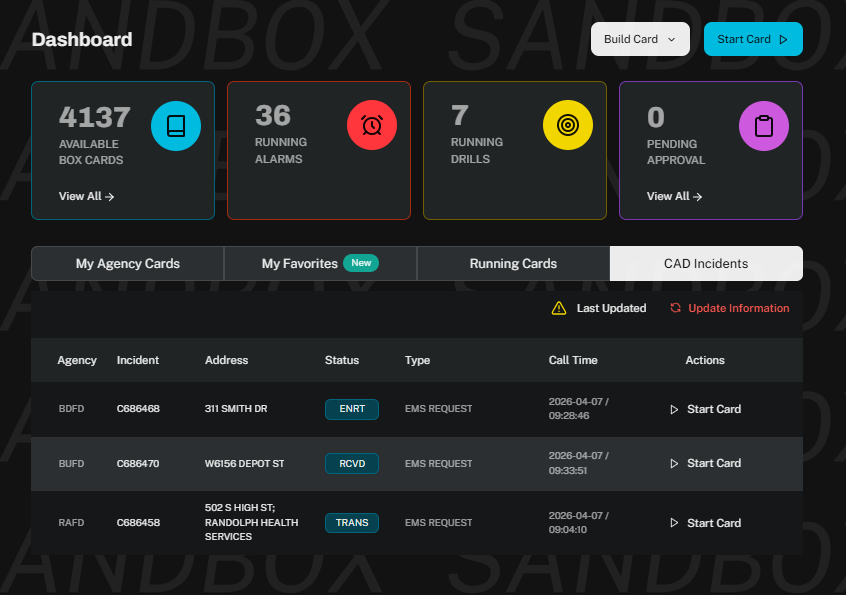
To start a card from a CAD Incident displayed, click on Start Card.
From there, you will be directed to the Start Card screen, which will display all of your division box cards. The list is alphabetized by agency.
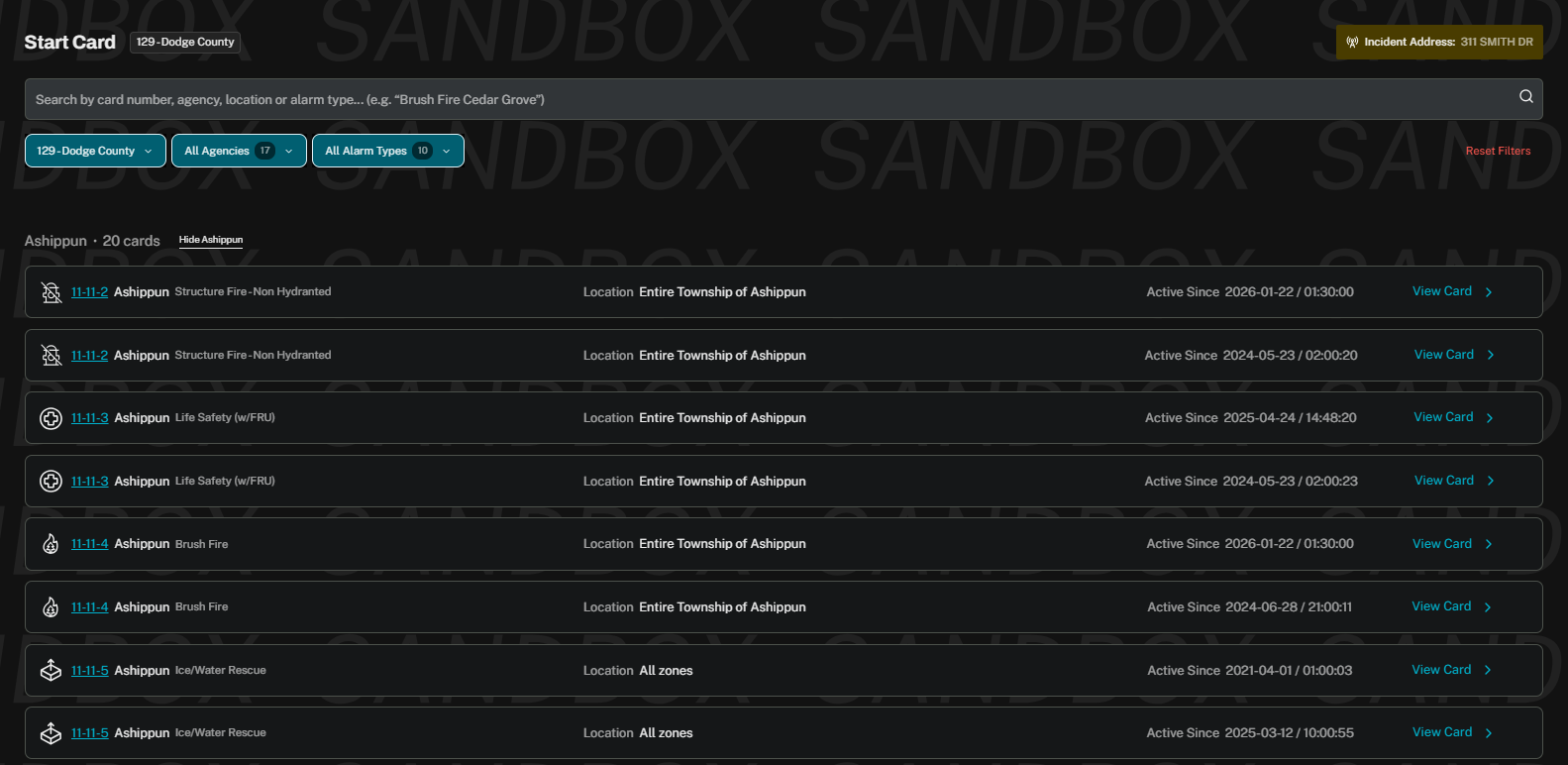
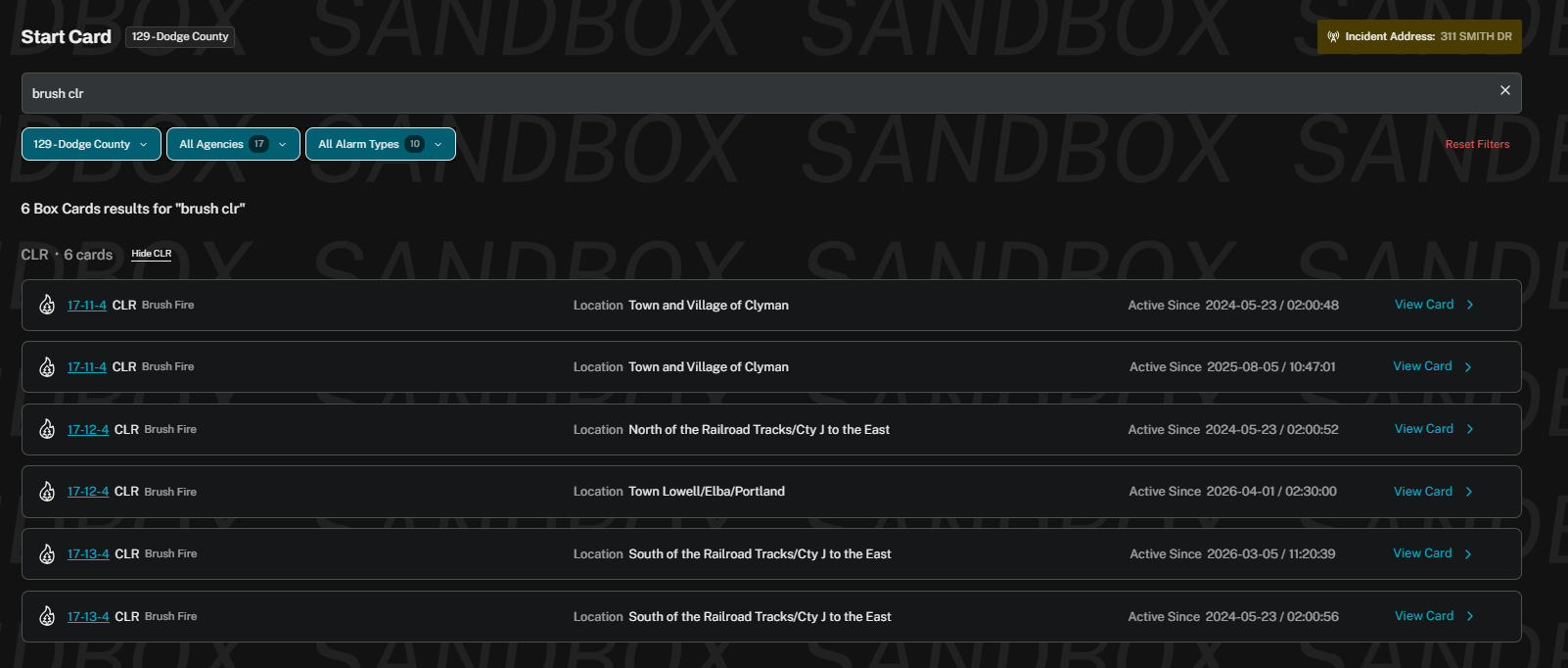
You can use the search bar to narrow down the results. You can type in the agency, the box card number, or key words. For example, Brush CLR in the search line brings up all brush fire cards in CLR.
Alternatively, click on All Agencies to select the desired agency and choose from the card list.
To bring up the specific card to be launched, click on View Card or on the box card number. This will bring you to Box Card Preview.
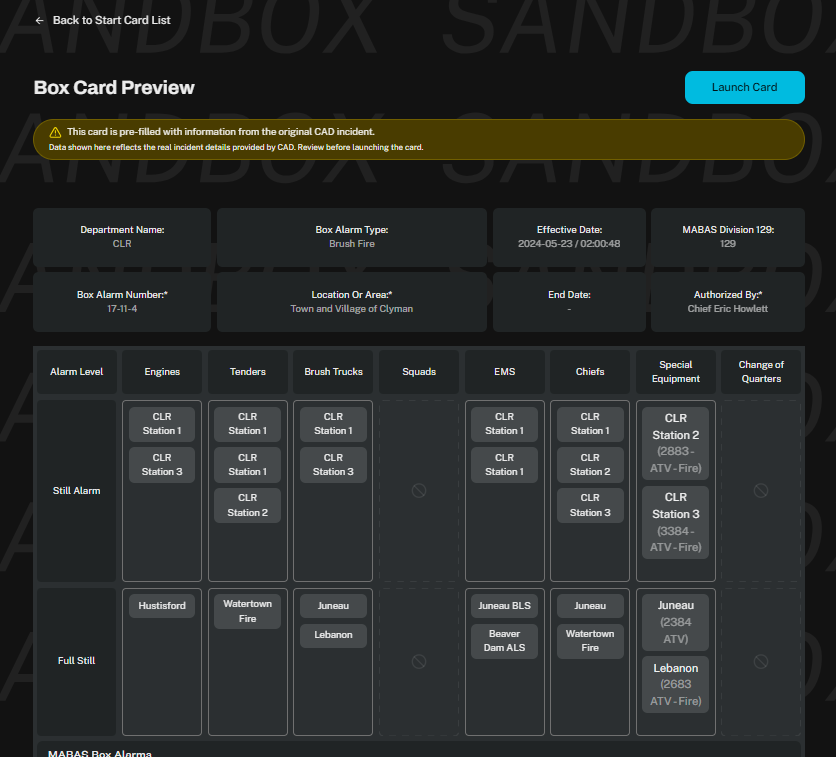
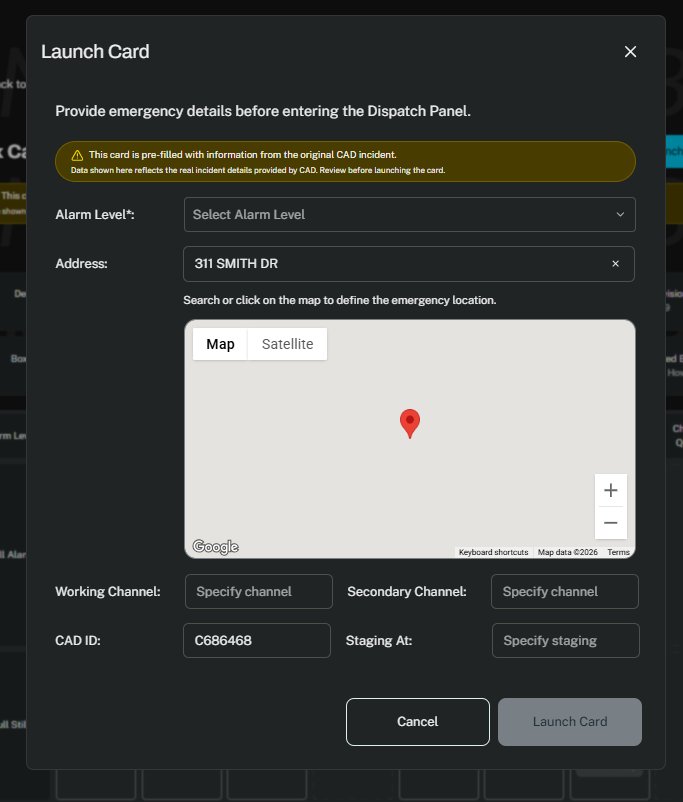
Click Launch Card.
The details from CAD auto fill in on the Launch Card form: address and CAD ID. As the note states, verify information is correct before launching. Fill in any other necessary details, and then click Launch Card.
Was this article helpful?
That’s Great!
Thank you for your feedback
Sorry! We couldn't be helpful
Thank you for your feedback
Feedback sent
We appreciate your effort and will try to fix the article