How to Add a New Contact
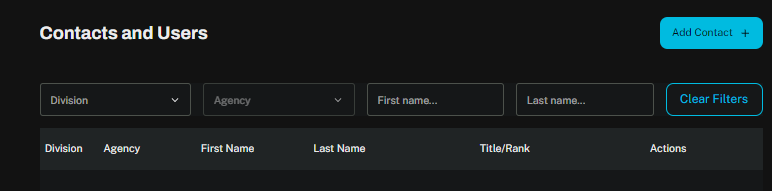
On a computer or laptop, click on Data Setup, Contacts
You can query contacts, filtering by division, agency, first name and/or last name.
To add a contact (must have Manage Users permissions), Click Add Contact.
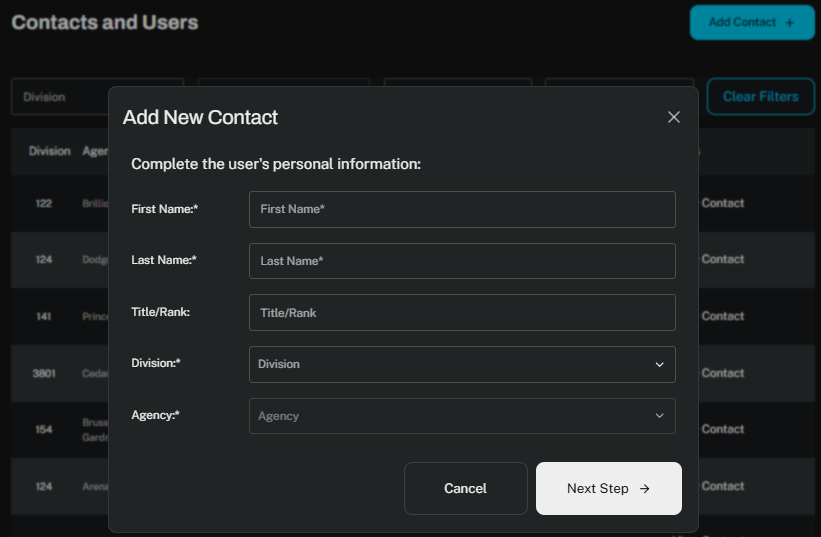
Enter information. Required fields are indicated with an asterisk
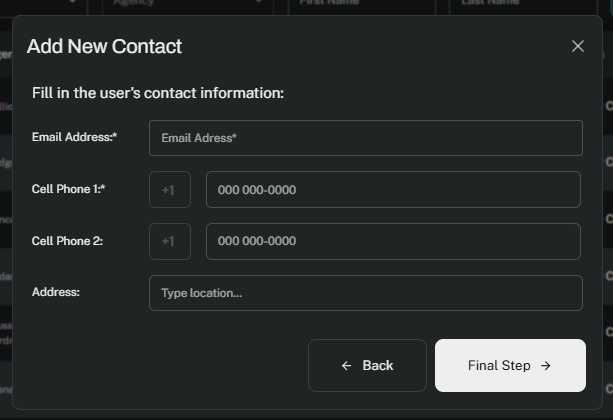
The next screen requires the entry of one email and at least one phone number; numbers only, no dashes. The top phone number is the number which will receive text messages from the system, if that is turned on.
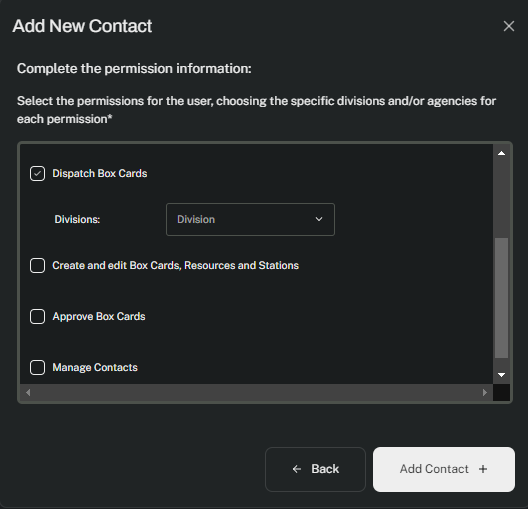
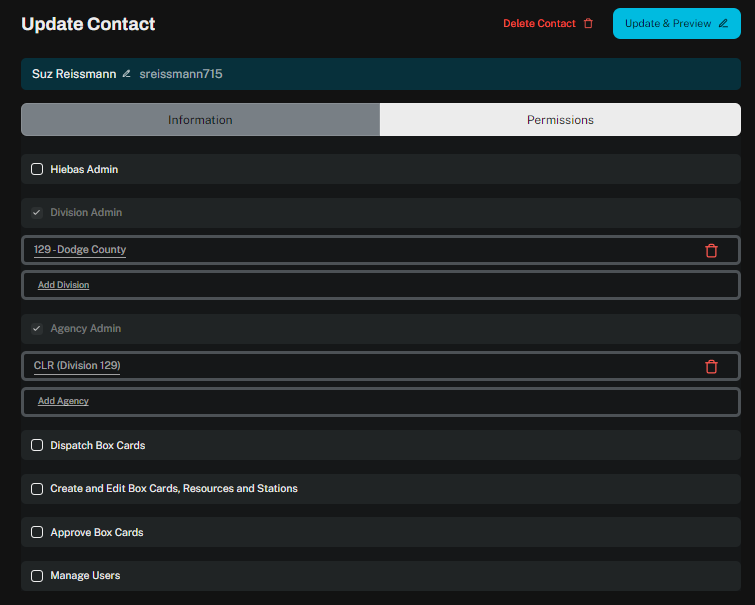
The last screen is where permissions are assigned. You can only assign permissions for your agency.
Dispatch admin can assign Dispatch Box Cards for a division.
If you are not assigning any special permissions, you can just click Add Contact.
Agency/Division admin can update user’s permissions anytime.
Search for the user and click View Contact. You can see the user’s information and assigned permissions. You can change a user's password here as well. A password must be at least 8 characters, one uppercase, and one symbol.
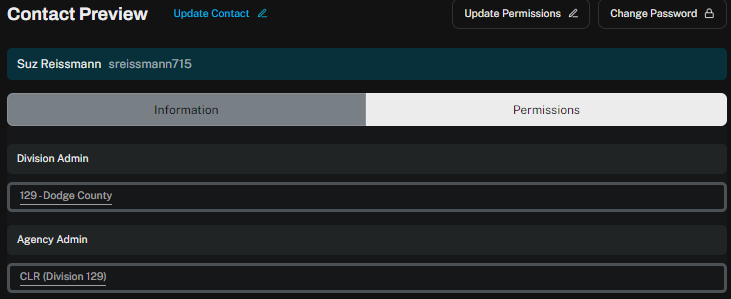
To make updates, click Update Permissions. There you can make updates, and, if needed, Delete Contact. Click Update and Preview when you are finished.
Was this article helpful?
That’s Great!
Thank you for your feedback
Sorry! We couldn't be helpful
Thank you for your feedback
Feedback sent
We appreciate your effort and will try to fix the article